
How to Install and Setup Xtreme HD IPTV
Welcome to the Xtreme HD IPTV family! Recently got your Xtreme HD IPTV plan and unsure how to get started with your Firestick or Android device? Our comprehensive, step-by-step tutorial guides you through each stage of the setup — with screenshots.
This guide installs IPTV Smarters, then signs it in with the credentials we emailed you. The Firestick steps below are the same on any Fire TV device.
Step 1: Enable Unknown Sources
Begin by preparing your Firestick for the installation.
Head to the 'Settings' from your Firestick's home screen.
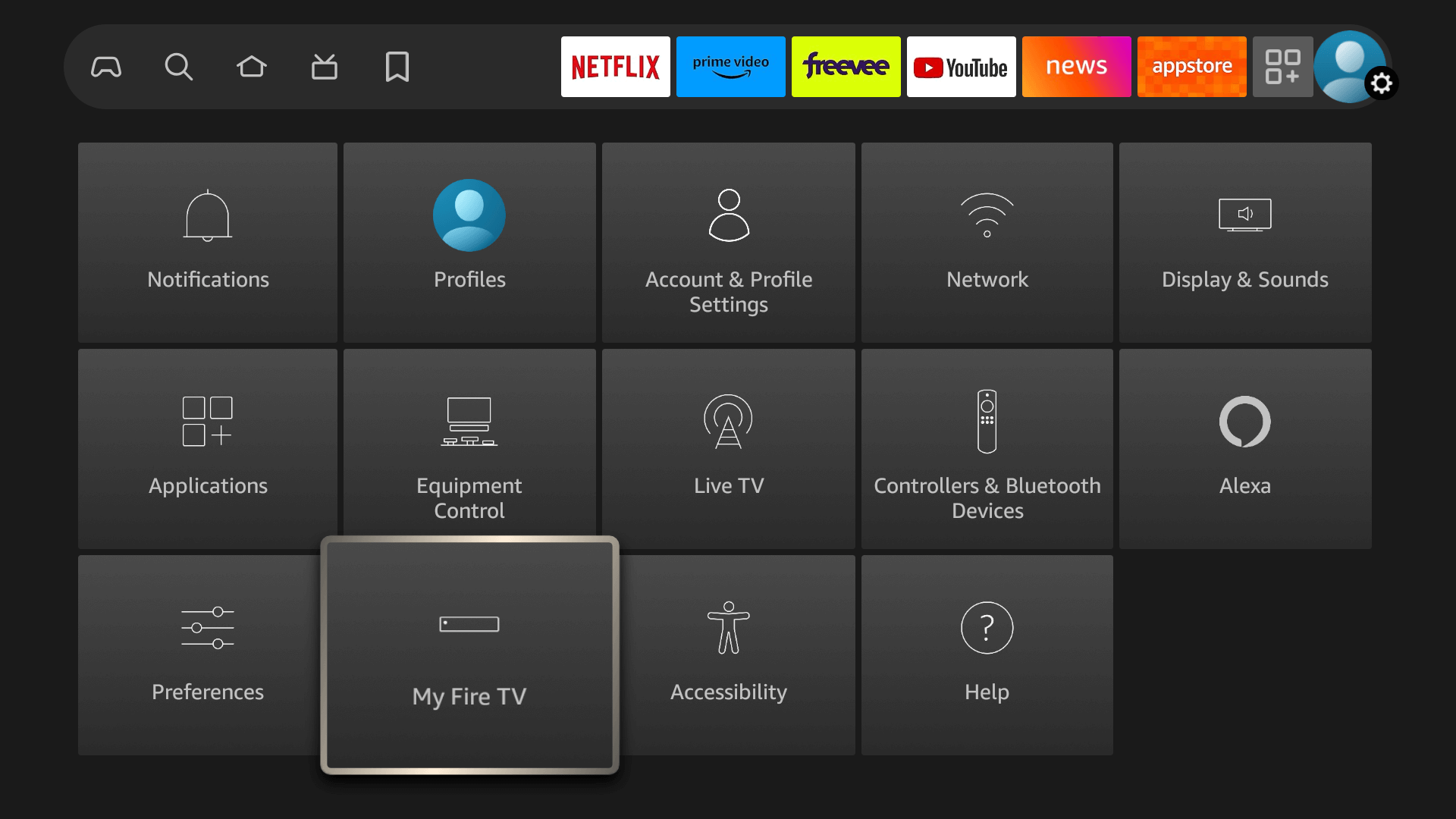
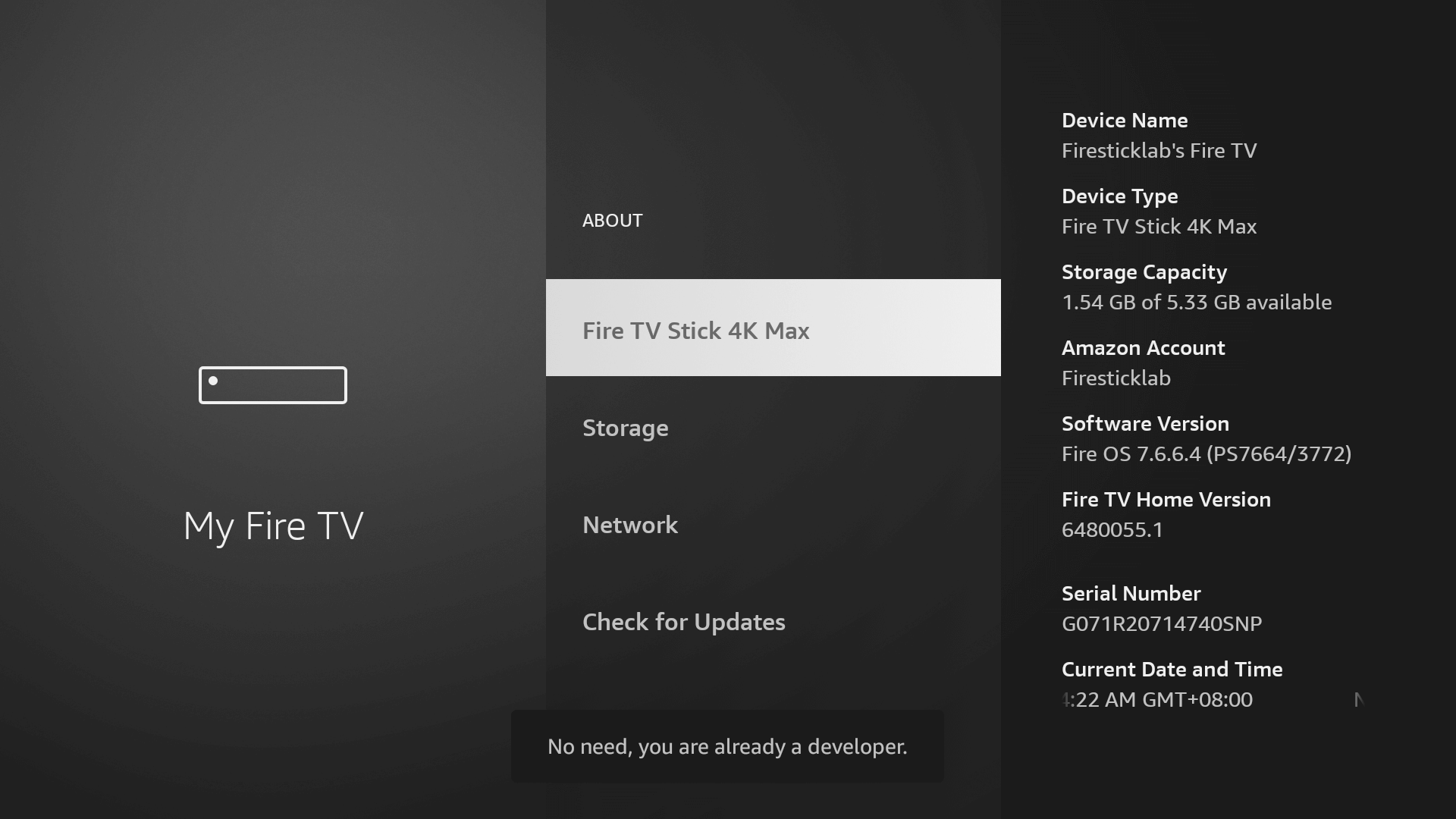
Scroll to select 'My Fire TV' > About > highlight Fire TV Stick 4K Max (or any other depending on the device you own) and press the OK button 10 times to enable Developer Options.
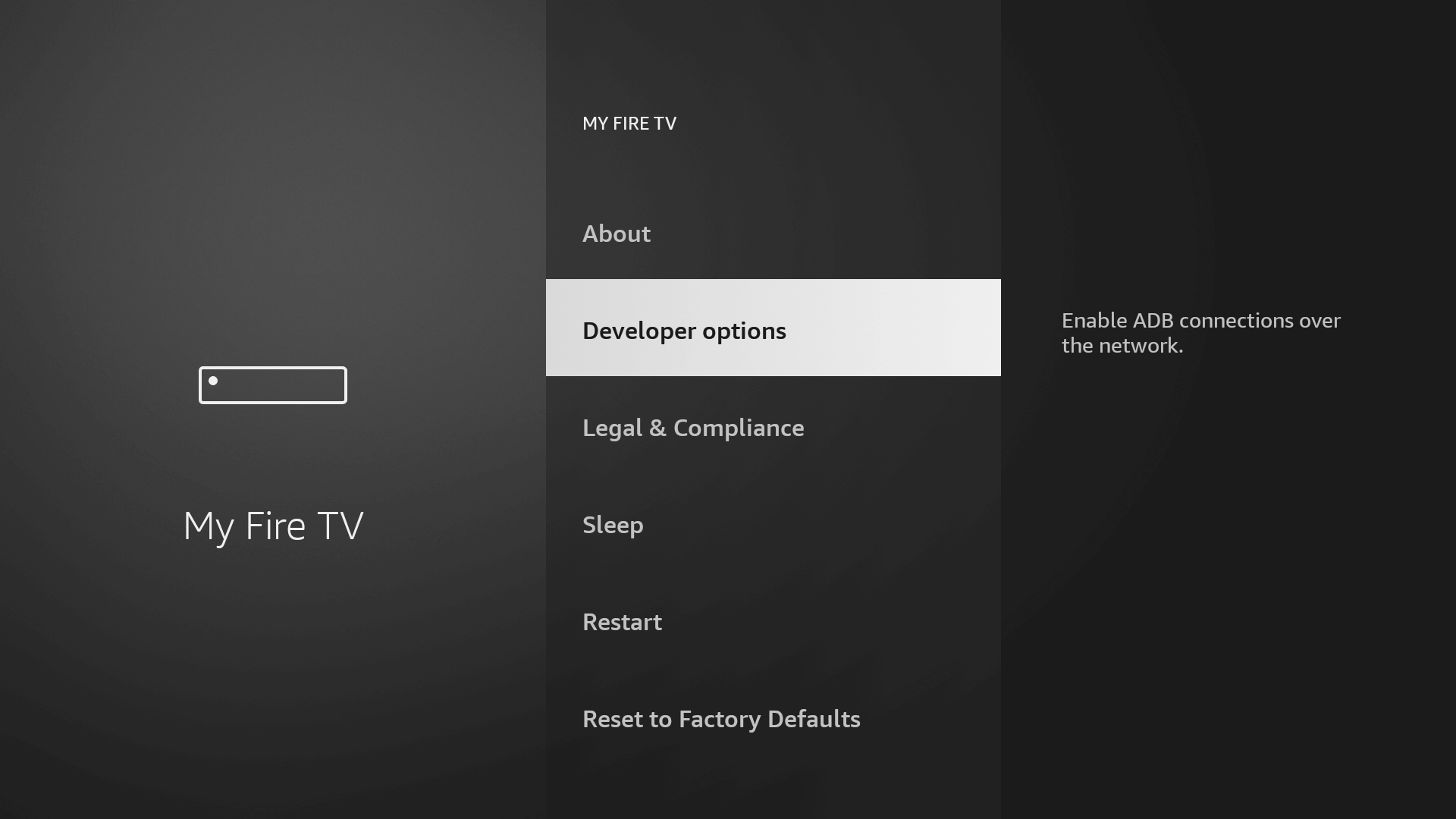
Open Developer Options — the first step is now complete; next we'll get the Downloader app.
Step 2: Get the Downloader App on Firestick
The Downloader app is a vital tool for Firestick users looking to sideload applications not available on the Amazon App Store. It lets you directly download and install third-party apps by entering the app's URL or code, or you can get it from the Google Play Store on Android devices.
Go to the Home Screen and from the Menu click on Find or the Magnifying Glass icon.
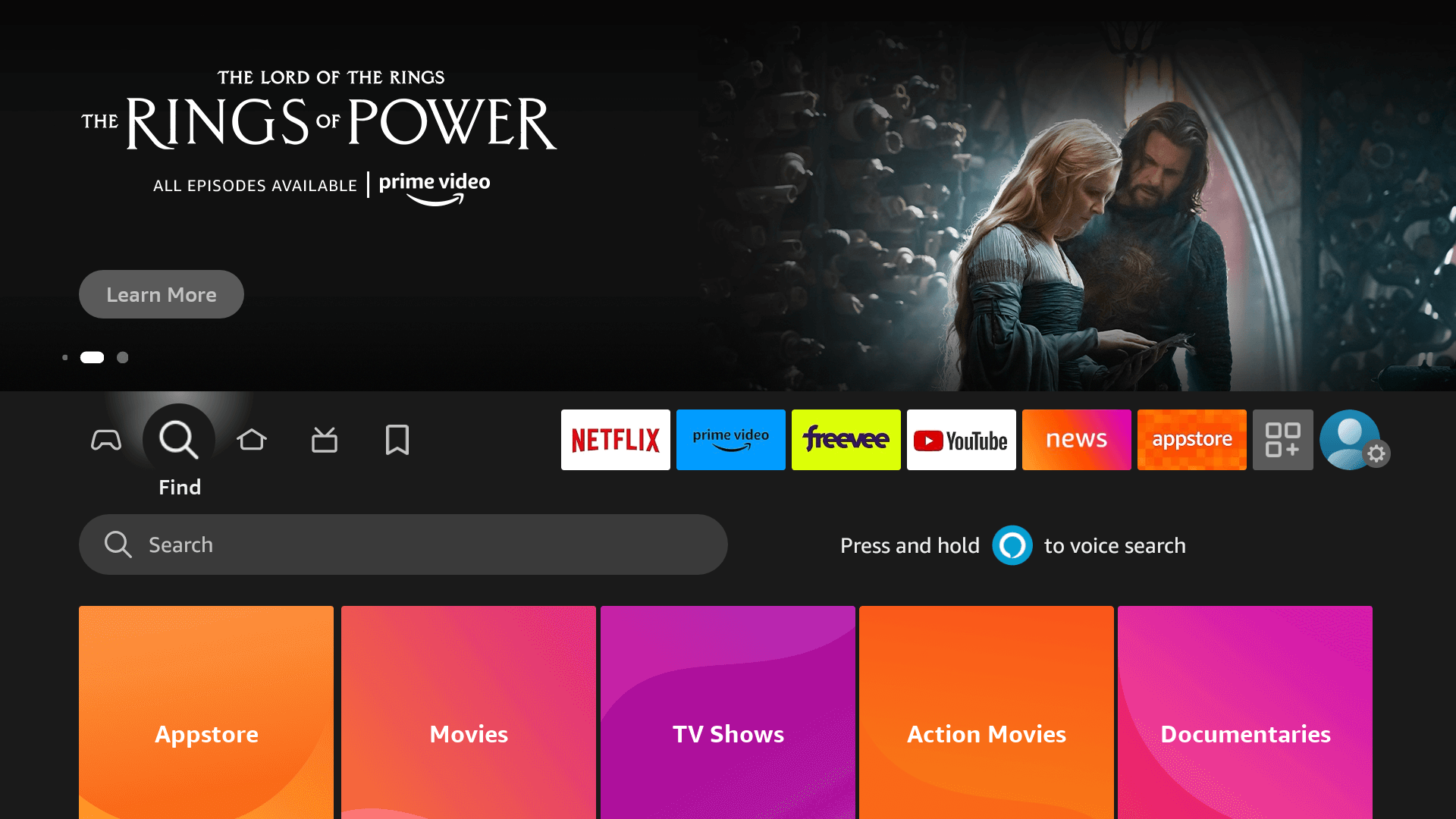
Type 'Downloader' using the on-screen keyboard.
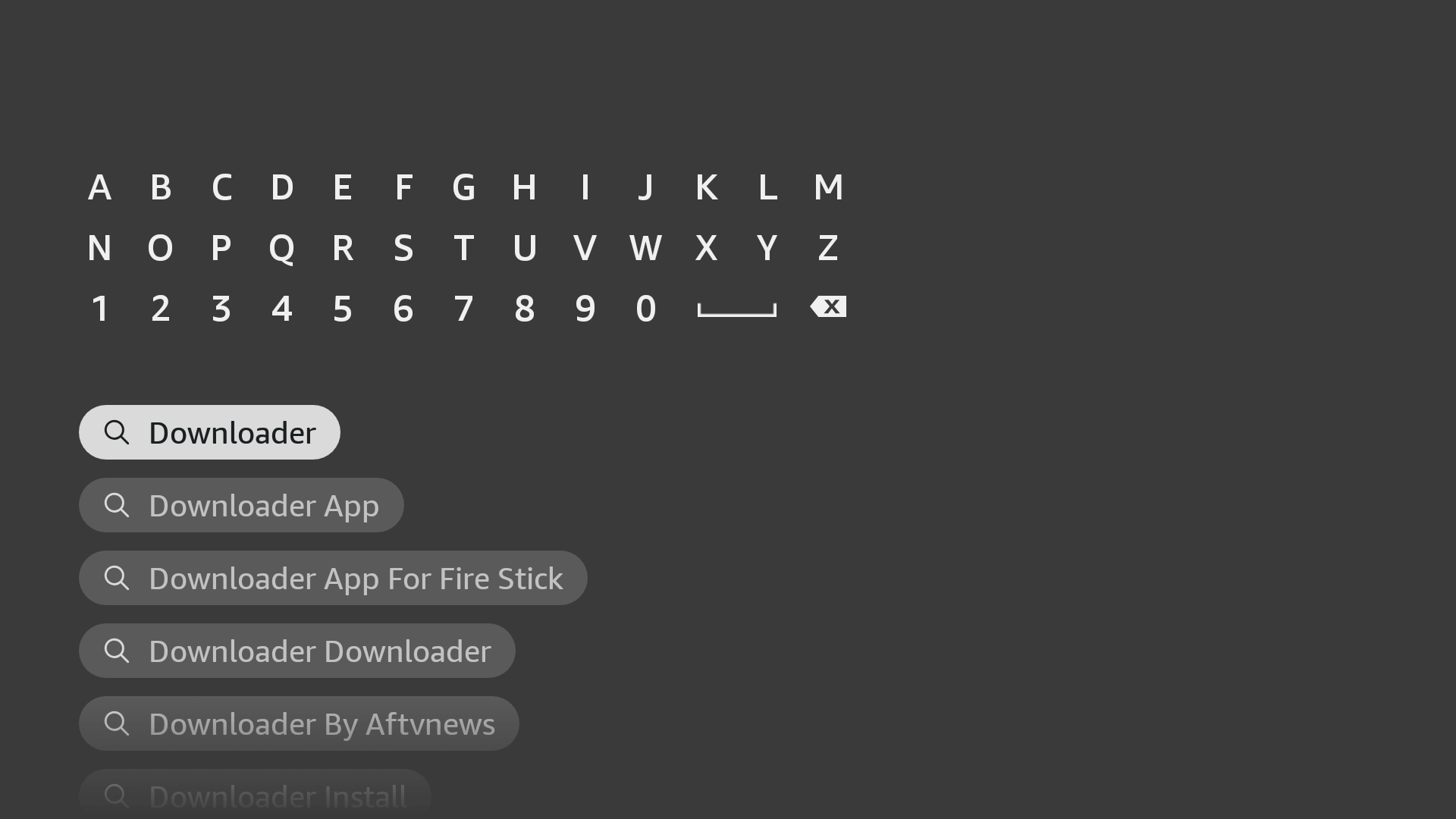
The Downloader has an orange background, so ensure you are downloading the correct app.
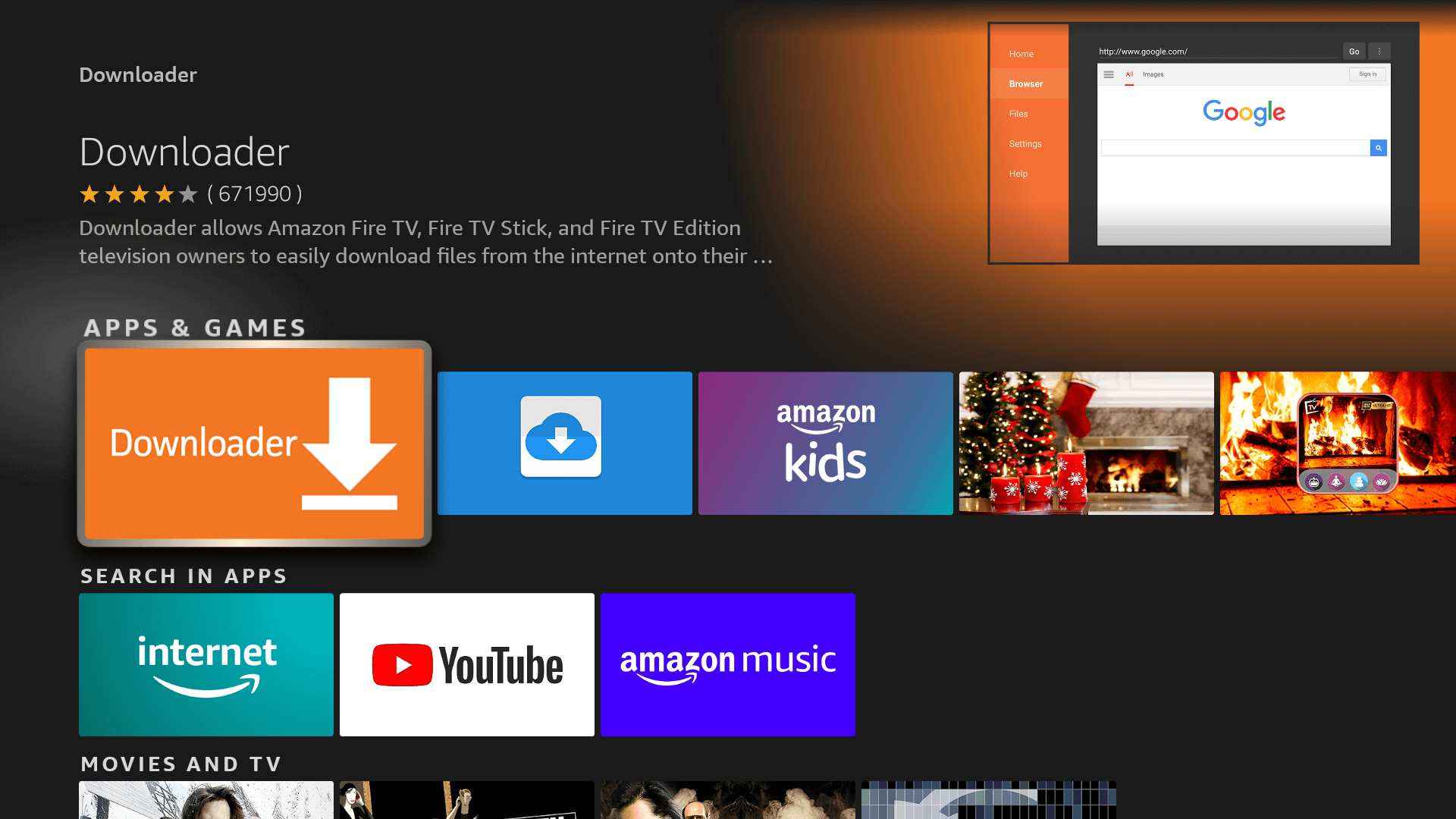
From the next screen, click on the Download button. Once installed, do not open it yet!
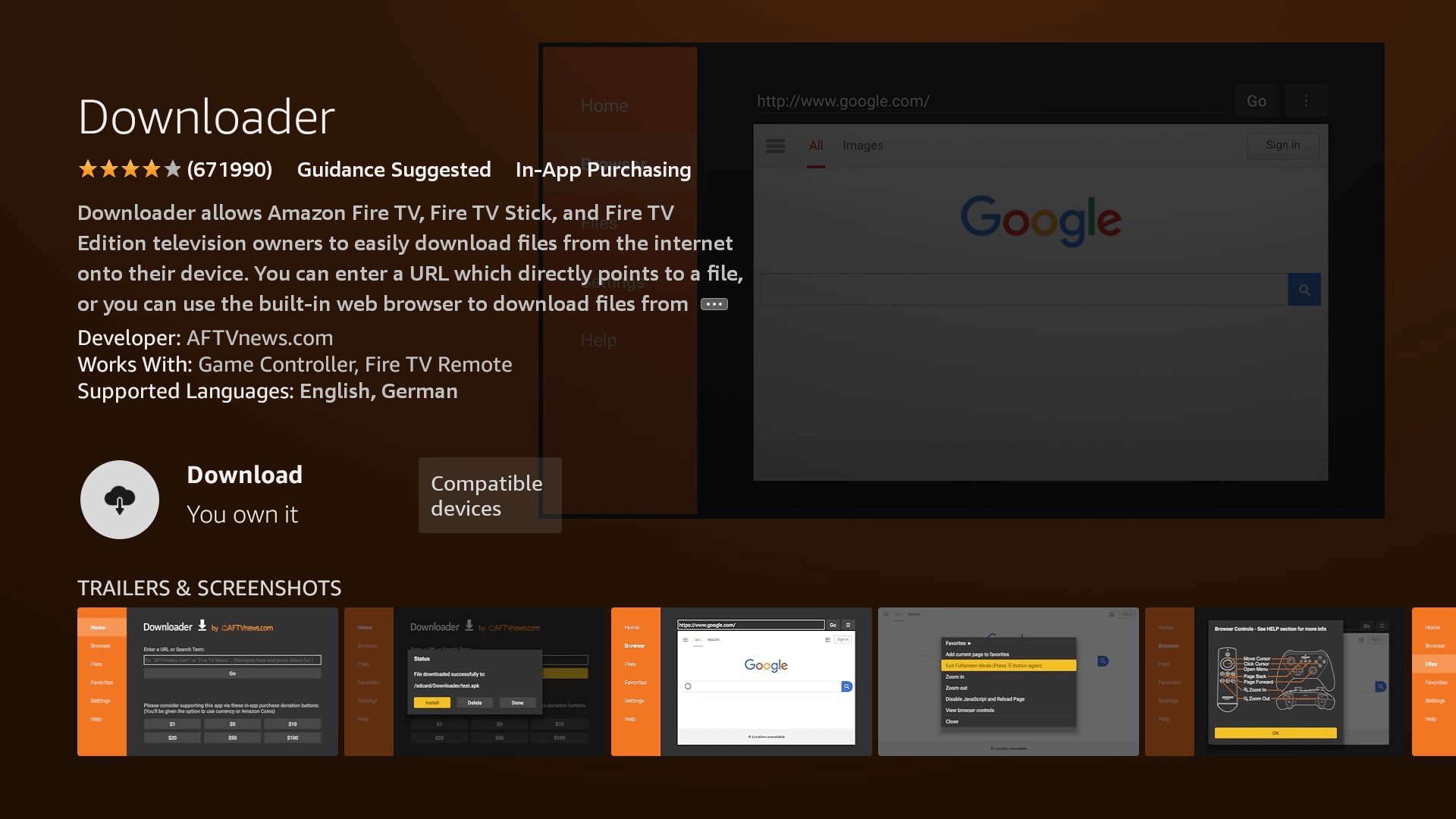
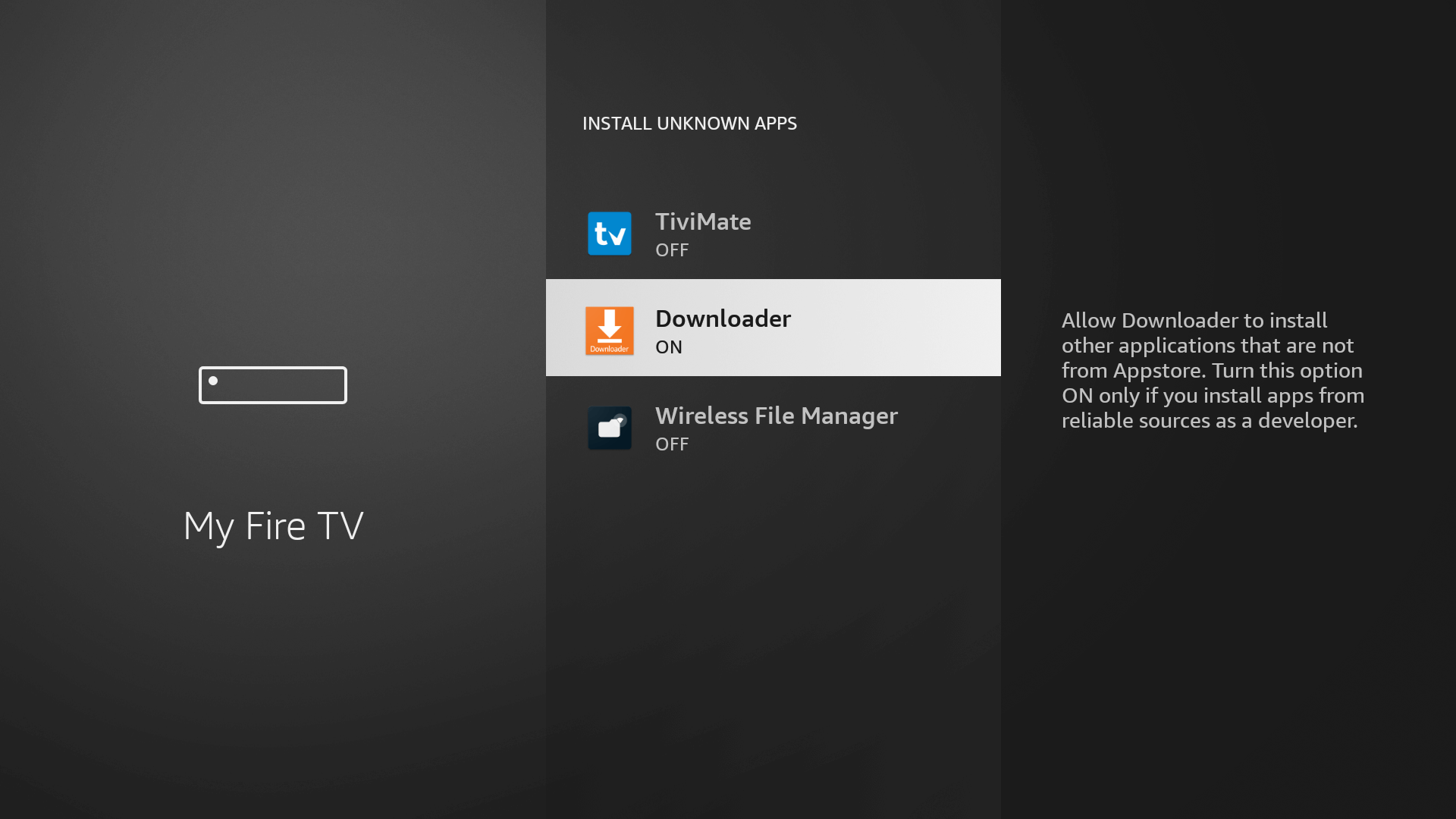
Enable Unknown Sources for Downloader: go to Settings > My Fire TV > Developer Options > Install Unknown Apps, locate 'Downloader' and toggle it to 'On'.
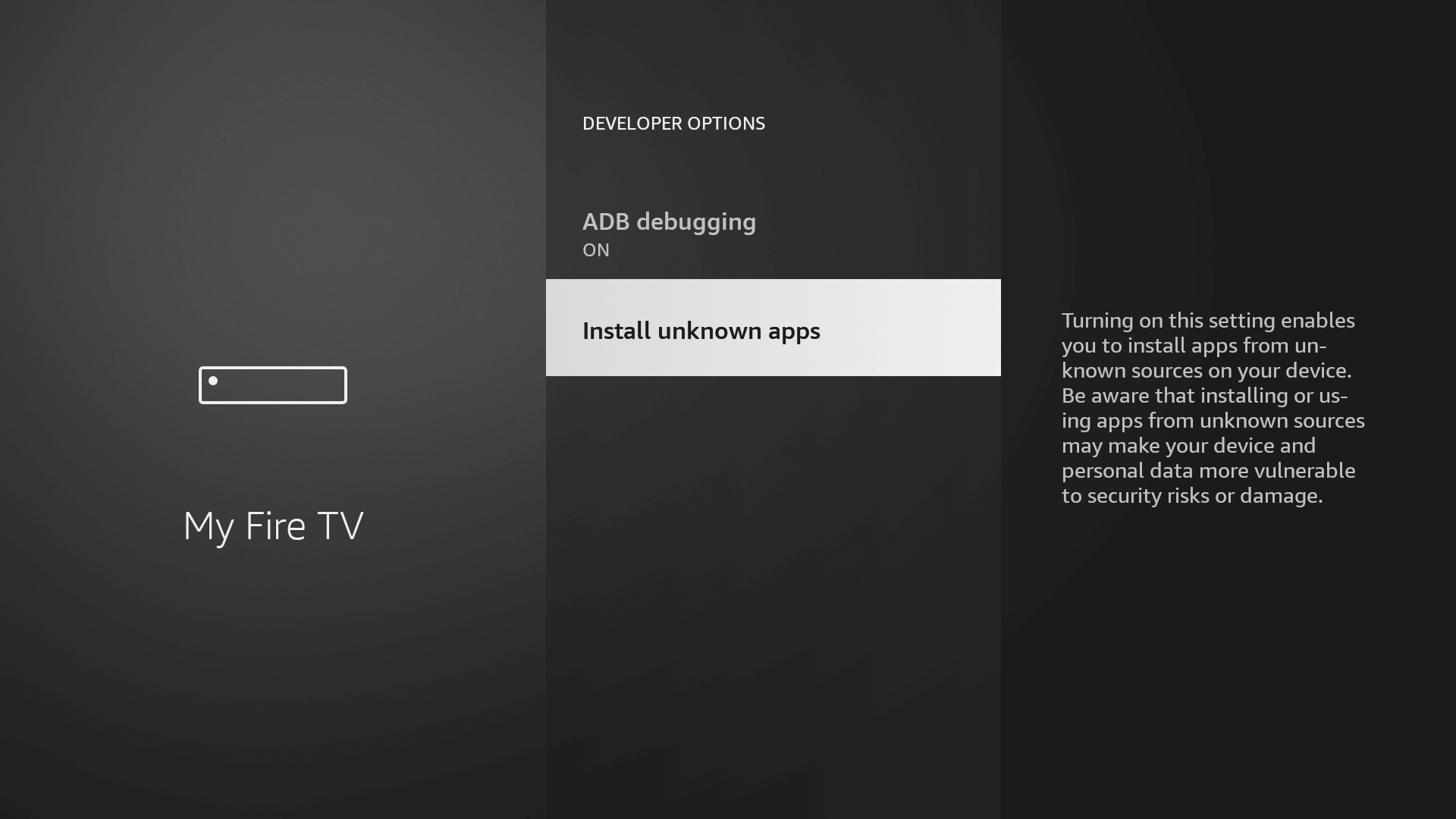
Step 3: Download and Install IPTV Smarters
Now that we have enabled Unknown Sources for Downloader, we are ready to get IPTV Smarters onto your device.
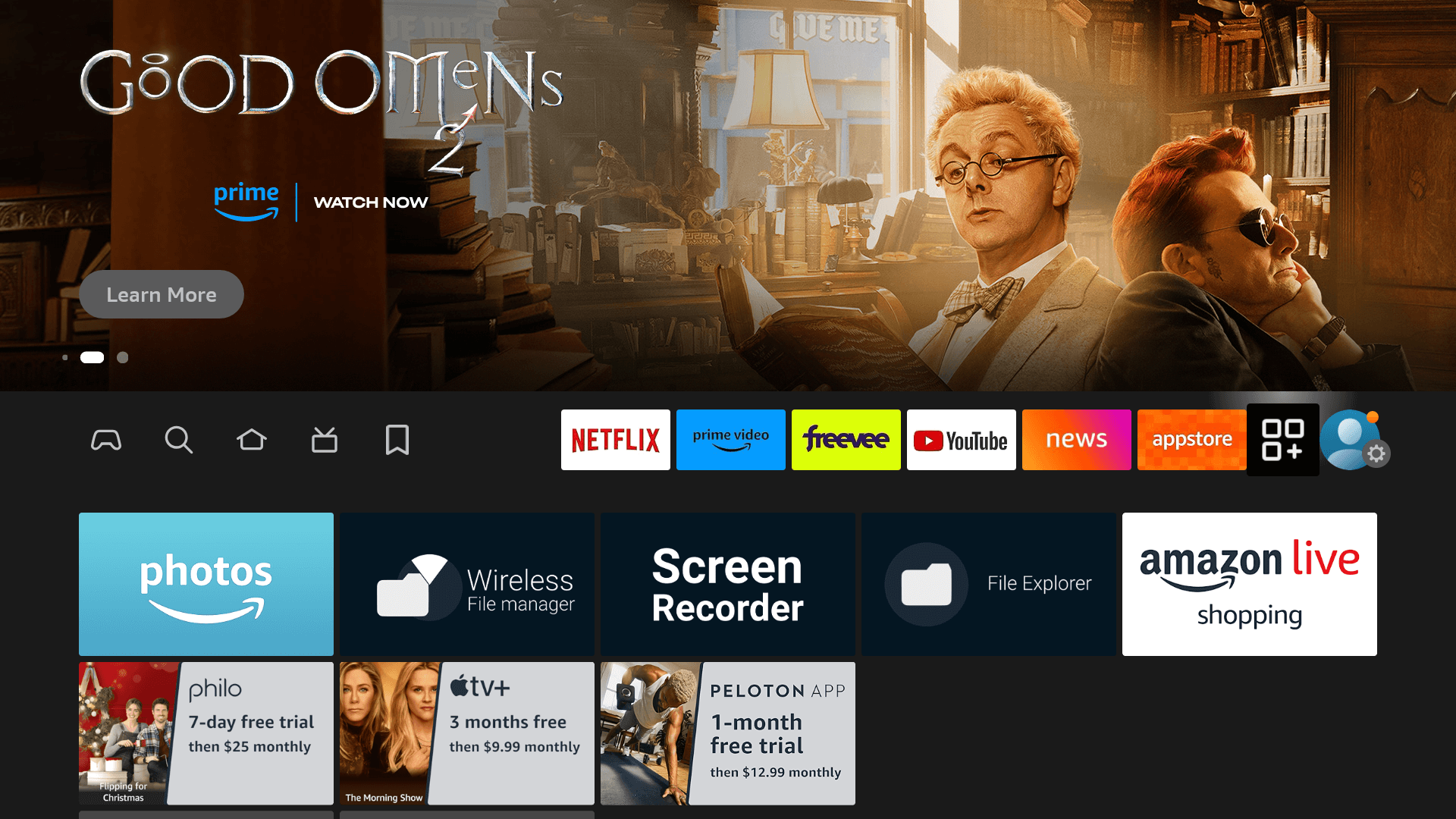
Go to the Home Screen and click on the Applications icon next to the Profile.
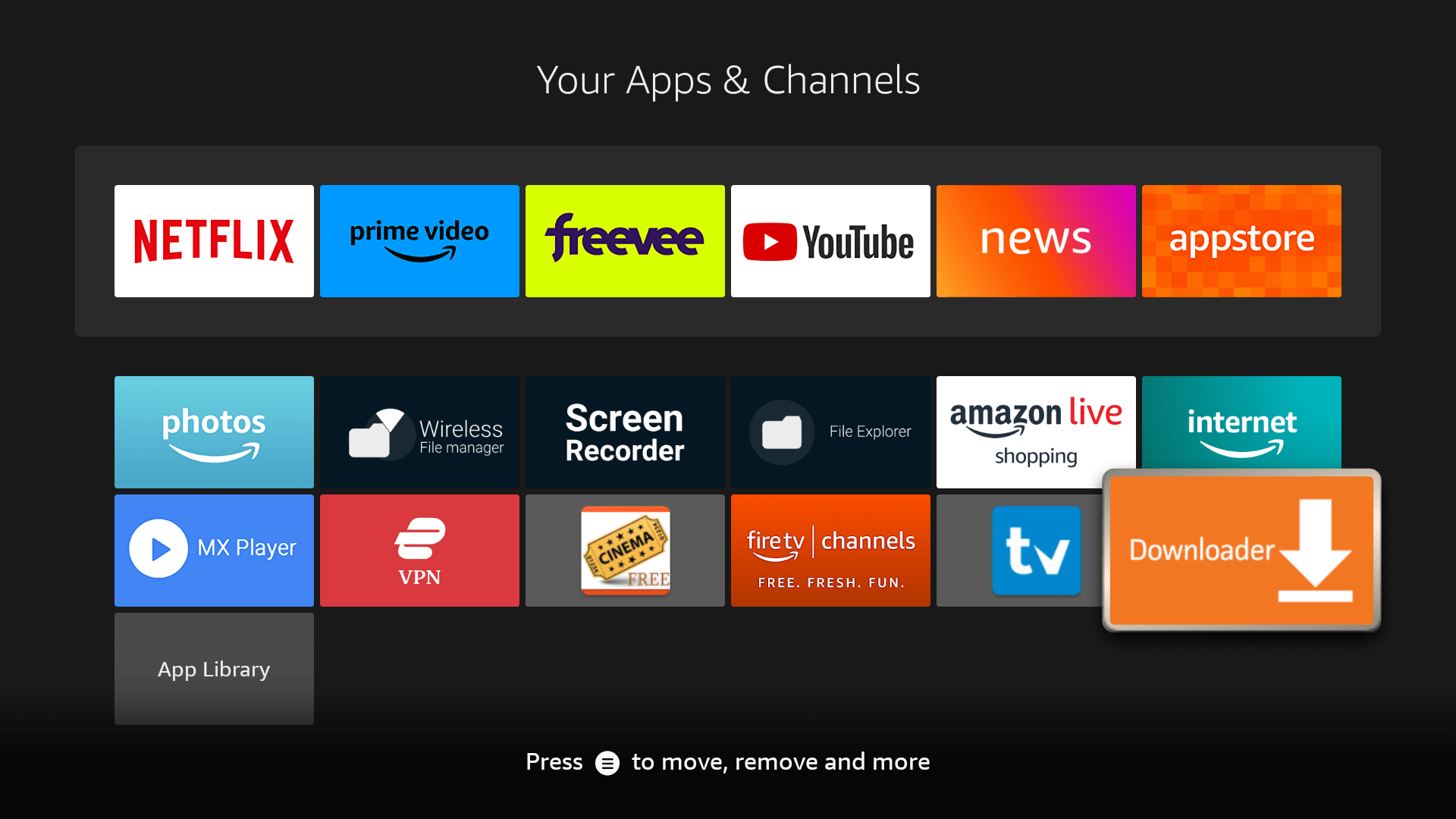
Scroll down and launch the Downloader app.
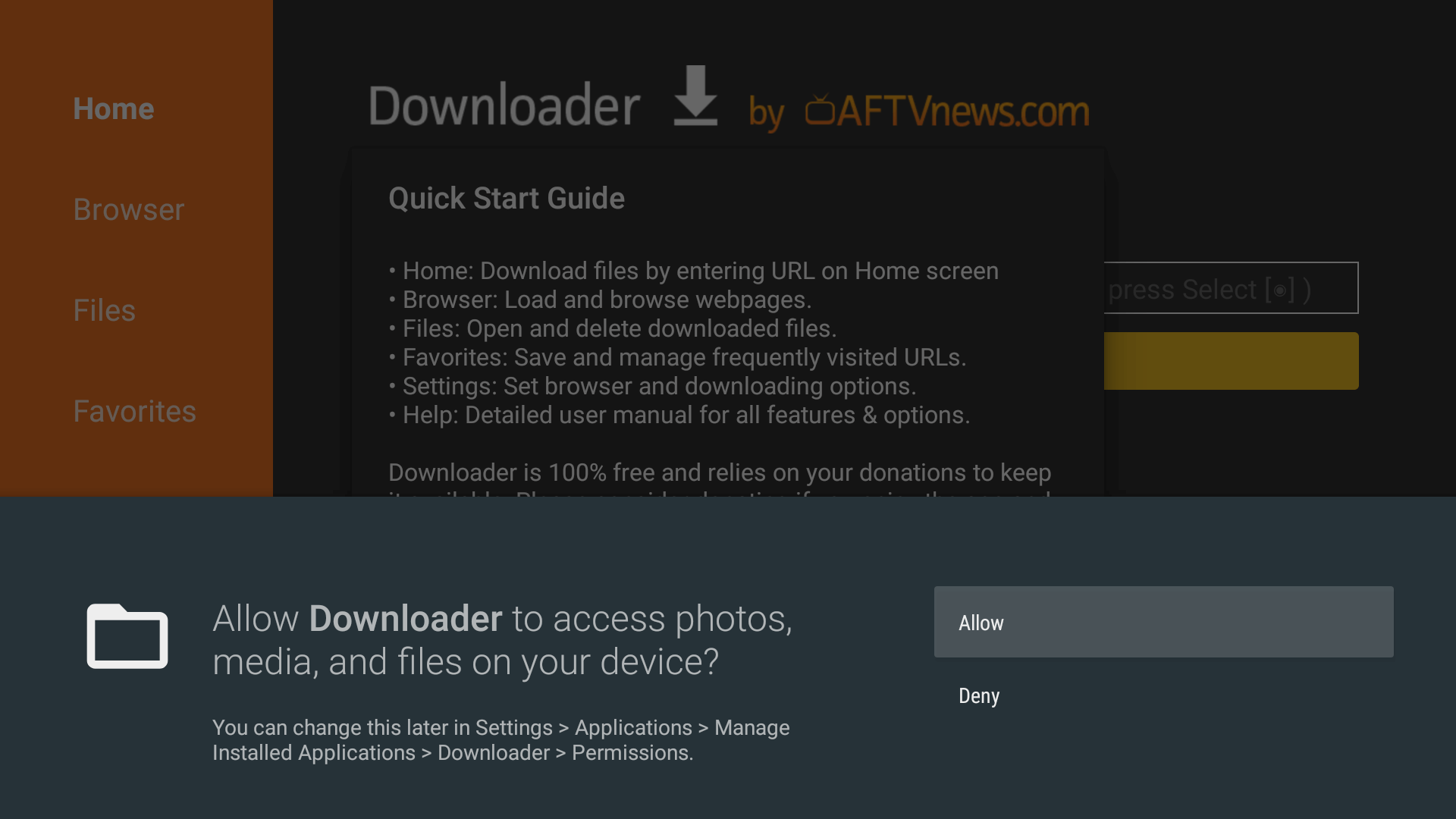
Click Allow when asked permission to access Media, Files, etc., and hit Got it on the Quick Guide.
Click on the empty box and, using the keyboard, type the code 250931. Wait 5 seconds and it will automatically redirect and download IPTV Smarters.
Once the app is downloaded, the Installation screen appears — hit Install from the bottom right. Installation takes 5–10 seconds.
Once completed, click Open to launch IPTV Smarters.
Type this code into the Downloader address box and press Go to download IPTV Smarters.
Step 4: Log In and Start Watching
Installation is complete. Make sure you have the login details we emailed you when your subscription was activated (check your Inbox or Junk folder) — you will need your username, password and server URL.
Open IPTV Smarters and accept the terms if you are asked to.
Choose 'Login with Xtream Codes API' — this is the option that uses the username and password from your activation email.
Enter any name you like for the playlist, then your Username, Password and the Server URL exactly as they appear in your email, and confirm to add the user.
The playlist will load. Open Live TV, Movies or Series and let each section finish loading its content.
Highlight any channel and press OK to start streaming. Press OK again on the video to go full screen.